vSphere Ipad App with Screenshots

The VMware purchase of SpringSource seems to be paying off heavily in the past few weeks.  After the long awaited release of the VMware View App for the Ipad last week, VMware followed up with the vSphere Client for Ipad on Friday  Unlike the View app that connects directly to a current production environment, the vSphere client requires you to install the vCMA or vCenter Mobile Access appliance from http://labs.vmware.com/flings/vcma.

Once you install the vCMA you are able to publish a new web based vCenter management console.  The vCMA will not give full control of your environment but it is great for quick checkups or vMotions.  Once the app is installed you can set the IP address from the console and then access the webserver by browsing to the IP address followed by /vim (http://192.168.1.15/vim as an example).  The next few screenshots are from my iPhone connecting into the vCMA

The first is the home screen with the second being the host and clusters view.  These should look very similar on any smartphone you look at.  One of the biggest features of the mobile app is the ability to migrate machines between hosts as seen below.

Now that the vCMA is installed you can grab the vSphere client for the ipad and get an even more detailed view into your environment.  The first step, once you have the client downloaded and installed, is to set the webserver in the Global Settings screen.  The webserver will be the IP address of the vCMA you installed earlier.  When you open the app you will be asked to enter the vCenter address and username and password.  From there you will see your hosts.

If you select one of the hosts you will see all the VMs it hosts along with basic performance information for the host.

Notice the performance tab at the bottom of the screen.  This screen shows the historic performance stats of your host.

Returning back to the info tab, you can select an individual VM and get information from that VM.

Similar to the host settings you can also see the performance of the individual VM.

Now that you can get the information from VMs and Hosts, the next options are tools.  You can ping or traceroute to the VM.

One of the last notable features is the ability to Suspend, Stop, or Restart the VM from the app.

As these apps mature I am sure we will see more features to include the network configurations, storage integration, and hopefully connectivity to the Public Cloud with the integration of vCloud Connector.

All the ways you can access your desktop

As a premier partner with VMware, we’ve seen a significant uptick in sales and pilots of the VMware View virtual desktop solution. The solution gives you a lot of flexibility for access including the flood of mobile devices hitting the market; iPad 2 anyone?

First, you can re-purpose your existing desktop as what’s called a full or fat client. This involves launching a client application from within the existing Operating System to access the View broker(s). The nice part about this approach is that regardless of your OS, there’s a client available to connect with. The Windows OS client from VMware gives you the advantage of software PCoIP and out of the box functionality. For Mac users there’s now have a native client as well, and you can use the Open Client when working with a Linux machine like Ubuntu (http://code.google.com/p/vmware-view-open-client/). If you’re looking to repurpose the desktops in your company but don’t want to maintain the desktop OS, there are client vendors that provide the ability to convert your existing desktop into a pseudo-thin client. This option allows you to ether completely rebuild the desktop as a pure thin-client platform, or as a dual boot environment. For more on this type of deployment, check out ThinDesktop (http://thinlaunch.com/).

The next option would be to access your virtual desktop from a traditional thin client. A thin client gives you a significant power savings with a product that has no moving parts and consumes anywhere from 6 to 50 watts versus upwards of 350 watts for a traditional desktop. There are a lot of vendors out there that make thin clients, but the granddaddy of them all is Wyse. We were fortunate to be able to speak with Kim Nicola at Wyse at VMware PEX 2011.

The last and most exciting (in my opinion) option for access is through a mobile device. If you are using an iPhone or Android based phone, you can use the Wyse PocketCloud app to get RDP access to your View environment and virtual desktop. For both platforms, the app runs $14.99 and allows you to connect to View as well as traditional RDP or VNC clients. If you have an iPad you can still use the Wyse app or you can use the newly released VMware View iPad App (http://itunes.apple.com/us/app/vmware-view-for-ipad/id417993697?mt=8).

Take a look at our latest ClearpathTV video below and see the View iPad Client in action.

Tips when upgrading from View 4.5 to 4.6

After working on updating my View 4.5 environment to 4.6, I came to the conclusion that the documentation is not exactly complete. I have listed out a few tips to take note of during your update process.
•All of the base images must have the upgraded View Agent installed. ◦You can install over the existing 4.5 agent, however it might fail if the View Composer Guest Server Agent can’t be stopped. To get around this, disable the service, reboot and reinstall the 4.6 agent
◦Once you install the agent, make sure you check the video card driver version. It should be the VMware SVGA 3D (Microsoft Corporation – WDDM) version 7.14.1.49

•Easiest way to upgrade the connection broker is by adding a replica server. ◦If you are running Windows 2003 32-bit the easiest upgrade path is to add a new server. Simply create a 2008 R2 server and install View as a replica server.
◦If you want to keep your Connection Server as 2003 then you can simply click the option “Use PCoIP Secure Gateway for PCoIP connections to desktop”
◦If you want to have a security server, I found it easiest to create another new server and set the pairing password. If your security server is already 2008 r2 then you could also reinstall the security server and set the password, but that would stop access temporarily from the outside world.

•On the View Admin console, make sure to set the external url on both the Security Server and the Connection Server. This is not needed or possible if you keep a 2003 connection server.
•If you want PCoIP over the WAN you will need to open a few more ports in addition to 443 ◦TCP 4172 Security Server -> Virtual Desktop
◦UDP 4172 Security Server Virtual Desktop
◦TCP 4172 View Client External -> Security Server
◦UDP 4172 View Client External Security Server

•If you think you have all the ports open, but still get a time out when using the Ipad client or through PCoIP, but RDP works fine and you are using a Cisco ASA (and possibly some other firewalls); we have found that you may need to separate the firewall rules. One rule for the UDP 4172, one for TCP 4172, and one for TCP 80 and 443. Having a single rule with all the ports seems to have problems when connecting through an ASA.

Hopefully these few tips will allow your upgrade or deployment to go just a little bit smoother.

VMware’s Project Horizon: What It Is and How Will We Get It?

Manage the User Locally, but Extend Identity to the Cloud

Starting at last years VMWorld one of the hottest topics has been Project Horizon. What was initially billed as an Enterprise App store will be released in three phases.

Phase 1: Secure Identity and Manage SAAS Apps
– Federate AD to Cloud SAAS Apps
– Simplify End User Experience with SSO
– Provision Users to mainstream SAAS Apps

A complementary product to many of your Identity Access and Management suites, Horizon will use a virtual machine placed in your DMZ that is referred to as the Horizon Connector.

Connector acts as a broker between the enterprise and the SAAS services. Secure tokens are used for the communication into the Horizon Cloud. Connectors from the Cloud could begin with Google Apps, Salesforce, Success Factors, Workday, Zimbra, Mozy, and Box.Net. These are done with SAML (http://en.wikipedia.org/wiki/Security_Assertion_Markup_Language) federation. SAML is an open standard that provides high security with no passwords, digitally signed tokens are passed for access. Access and reporting can be done from the Horizon Connector for auditing and license tracking.

Phase 2: Modernize your Windows Environment
– Virtualize your windows apps for isolation and portability
– Secure and Mange the desktop
– Orchestrate Windows App Delivery Options

This phase will bring applications into an app store, very similar to http://myonelogin.com/, with the addition of being able to add in ThinApp applications and Microsoft App-V packages. With a client to be released for desktops Horizon should be able to push icons for applications directly to the desktop after they are selected from the enterprise app store.

Phase 3: Control Your data and Collaboration
– Automatic Data Sync to trusted devices
– Encrypt data across different platforms
– Enable Simplified End User Collaboration

The last phase of this rollout will include being able to allow access to data and transfer/sync user data regardless of platform or applications, either within the enterprise or with SAAS products.

New Desktop Virtualization Certifications from VMware

VMware announced at Partner Exchange yesterday a new certification designed specifically around desktop virtualization. The VMware Certified Associate – Desktop or VCA4-DT is the first of these certifications and the test is being ran in beta at Partner Exchange. According to the education team this is the first of 3 new certifications. There will be a VCP-DT for desktop focused engineers as well as a VCAP-DT for the most advanced desktop focused virtualization architects.

There are no prerequisites for the VCA exam, however VMware recommends taking the VMware View Fundamentals and the View 4.5 Install, Configure and Manage classes. The current requirements for the VCP4-DT will include passing the VCA4-DT and attaining a VCP4 certification.

The test is still in beta, however there is a blueprint on the VMware website (http://bit.ly/erCNUD). The beta test is 110 questions with top is ranging from the CLI commands, to maximum capabilities. Before taking the test you will want to make sure you have worked on View often, including troubleshooting.

PEX Track Session : VMware View

VMware View as a business catalyst. That was the overwhelming focus of the solution track boot camp at Partner Exchange today. I was very excited to hear the product team at VMware go into details about the total cost of ownership and return on investment that comes from a VMware View deployment. Imagine being able to take a physical server infrastructure that costs over $3 to manage for just a single dollar worth of hardware and being able to reduce that to just over $1.

The historical argument has been that it is impossible for the cost to be so much lower when you have to buy server and storage hardware instead of a desktop. Add in the Microsoft licensing and the View licensing and it has to be more expensive.

Not the case. Using some of the industry standard numbers you can get up to a 50% decrease in total cost of ownership. I will make sure to get all the details and get that out in another blog soon.

Cost savings is a great thing, but how is the user experience or the management experience? The ability to split the apps from the desktop and from the profiles allows management staff to customize the user experience for performance. This sounds great, but make sure you get an assessment done first. View is not the solution for every desktop and every application and an assessment can help you see exactly which desktops and which solutions will help you move into a virtual desktop infrastructure.

Once you have the results of your assessment there are a few things that may come in handy:

• Administrators have the ability to throttle PCoIP is now built into some of the View 4.5 adm files. The throttling can give minimum and maximums on bandwidth consumption.

• If you want to avoid the $100/year Microsoft VDA license, you can purchase a barebones PC with Windows licensing, no hard drive and maintain software assurance. This will drop your yearly cost in half since SA is normally about 30% of the cost of the OS purchase.

• USB load across PCoIP will show as more bandwidth than you probably imagine. This sounds like something that might not matter, except when your users want to sync their iTunes all at the same time.

More to come, stayed tuned throughout the week, tomorrow should be some more technical View info.

Virtual Desktops : A Glossary of Terms

While preparing this series of blogs on virtual desktops, it occurs to me that virtual desktop, like all technologies, has its own set of acronyms and terminology that may not be commonplace for everyone, but are necessary to define and understand. With that in mind, this first blog is actually a condensed glossary of acronyms and terms relevant to virtual desktop solutions. My next blog will outline the steps necessary to roll out a virtual desktop infrastructure in your environment… not surprisingly, the terms below will be used frequently:

VDI: Acronym for Virtual Desktop Infrastructure; this is the entire environment required to run virtual desktops including servers, storage, endpoints (thin or thick clients), software, and images.

Hardware Thin Client: A hardware device that replaces a traditional desktop or laptop. Hardware thin clients have few or no moving parts and provide ports for peripheral device connections (keyboards, mouse, monitor, etc.)

Connection Broker: The connection broker maintains a list of available virtual desktops, and when a client makes a request it provides the client with the connection information (including authentication) for the appropriate virtual desktop.

Base Image: A base image is the minimum desktop and application requirements for a set group of users. This would be used as a starting point for all full desktop deployments. A base image will allow you to minimize the applications that need to be managed when deploying desktops. When you know that office, a PDF reader, and your main enterprise application will be used by every employee, why would you want to manage them separately?

Full Clone: A full clone is an exact replica of a virtual machine at a point in time. This clone will take the same storage and performance requirements of the original image. The full clones are normally used when you have group of desktops that will be assigned to a specific user group, and they allow you to install applications or any other desktop customization. Full clones are your most resource-intensive group of virtual desktops that can be deployed and should be used only when absolutely needed.

Replica Disk: The replica disk is a full clone of the base image that is used to take snapshots of the base image for the creation of linked clones. This is normally a read-only copy of the base image. If you created linked clones you will take a snapshot of the replica disk and users will work off of the snapshot. This consumes the full CPU and memory resources of the base image, but only for changes done by the user.

Linked Clone: A linked clone is a snapshot of a replica disk that is accessed by users. This snapshot only consumes the storage resources as it is used. A full sized clone would take the same amount of storage as the original. This will allow you to save upwards of 90% of the storage needed for a full desktop clone pool.

Virtualized applications: Virtualized applications are applications that have been packaged to run independently of the operating system. Virtualized applications can be presented to desktop pools or shared via file share. These virtualized applications would be used to augment a base image. The application that might be used by one department in addition to the standard apps could be virtualized to ease management.

Persistent vs. Non-Persistent: A persistent pool would mean that a user would always access the same virtual desktop; this is most commonly used when a user has access to make changes to their system, for instance, administrative rights or application installs. In a non-persistent or floating pool, the user could receive any desktop in the pool. Floating pools are most often used in office environments or call centers. When any user logs in they could get any machine in the pool and their profile would migrate with the user.

User Profile: The user profile can include all the settings that a user would change, to include the desktop background, files and icons on the desktop, and any settings assigned through application installation. User profiles are part of a user’s active directory profile and are used regardless of a physical or virtual desktop.

How to Add a SSL Cert to View 4.5

VMware has made great strides in building documentation for View 4.5 compared to the VDI and View 3 days; however there is one spot where their documentation is lacking.  Most administrators want to make sure that if they build a SSL encrypted website, they can purchase a trusted certificate and install it without any major issues.  I spent the better part of a day trying to find out how to combine the VMware documentation with my hands-on experience to get a GoDaddy Cert on two View Connection Servers.  In this case, I did not add security servers, however after a little more testing I found out the process is the same.  For more info if you need it refer to the VMware View 4.5 Installation Guide (www.vmware.com/pdf/view45_installation_guide.pdf). So without further ado, here are the steps to get a SSL certificate installed on a set of View 4.5 Servers.

1. Add Keytool to the system Path.
a. Right-click on My Computer
b. On the Advanced tab, click Environment Variables.
c. In the System variables group, select Path and click Edit.
d. Type the path to the JRE directory in the Variable Value text box. Use a semicolon (;)
to separate each entry from other entries in the text box.
Example: C:\Program Files\VMware\VMware View\Server\jre\bin
          *If you changed your install path – change it here also
2. Generate a keystore
a. Open a command prompt and go to the root of C:
b. Type:
“keytool -genkey -keyalg “RSA” –keysize 2048 -keystore keys.p12 -storetype pkcs12 -validity 360
Note the added keysize argument. This is needed for GoDaddy and most Trusted providers
c. When asked for a password, make sure you write it down, you will need it later
d. When keytool prompts you for your first and last name, type the fully qualified domain name (FQDN)
that client computers use to connect to the host. (i.e view.yourcompany.com)
This should be your load balanced FQDN not the individual servers. VERY
IMPORTANT STEP!
3. Configure the View Connection Server for the self signed cert
a. Copy c:\keys.p12 to the SSLGateway configuration directory
For example: install_directory\VMware\VMware View\Server\sslgateway\conf\
Only copy the file since you will need it to create the csr it is easier on the root of c:
b. Create a file called locked.properties (Make sure you save it as a .properties file not .txt)
c. Edit the file with notepad and add the following lines
keyfile=keys.p12
keypass=”The password you set when creating the keystore” (i.e. keypass=p@ssw0rd)
d. Restart the View Connection Server service. This will restart a few services include the web
services so be a little patient. You will now have a self-signed certificate.
The next part is to get a certificate from GoDaddy and install it.
4. Create a CSR
a. Open a command prompt and go to the root of C:
b. Type:
“keytool -certreq -keyalg “RSA” -file certificate.csr –keystore keys.p12 – storetype pkcs12 –storepass secret”
Replace the word secret with the password you set earlier.
c. A new file will be created c:\certificate.csr
5. Get a Signed Certificate
a. Open c:\certificate.csr with a text editor
b. Copy all of the text from the .csr into the GoDaddy website. It should look like the graphic below
c. Once you have copied this into GoDaddy and processed the Cert you will need to download the cert.
Choose to download the cert for Tomcat.
d. Unzip the file and open the certificate named for your domain

6. Create a file to add to the keystore

a. Click on the details tab and click Copy to file
b. The Certificate Export wizard appears
c. Specify PKCS#7 format, include all certificates in the certification path, and
then click next.
d. Specify a filename and click Next.
e. Click Finish to export the file in PKCS#7 format.
7. Import the file into the keystore
a. Open a command prompt and go to the root of C:
b. Type:
“keytool -import -keystore keys.p12 -storetype pkcs12 -storepass secret -keyalg “RSA” -trustcacerts -file certificate.p7”
Replace secret with your password. Your file may also be .p7b so if it is change the line above to reflect that.
c. Copy c:\keys.p12 to the SSLGateway configuration directory
For example: install_directory\VMware\VMware View\Server\sslgateway\conf\
d. Restart the View Connection Server service
To add the certificate to the second View Connection Broker simply copy the keys.p12 and locked.properties file to the SSLgateway directory on the second server and restart the View Connection Server Service.
Once you have this all set you should be able to look at your standard web browser and see your great new certificate.  Good luck and hopefully this was helpful to others out there.

Make your own thin client in 30 minutes or less

When repurposing your desktops as a thin client – most users choose to keep a base windows image or replace it with a thin os to get you to your view desktop (ex. VDIBlaster). Both of these cost $, but a new free approach that is easy to do with the instructions below is to make your own thin client. The use of Meego, a very user friendly Linux distribution, combined with the VMware View open Client allows for a free(if you have old hardware) and fast do it yourself thin client. Just follow the instructions below.

1. Download Meego from http://meego.com/downloads

2. Install Meego to the hard drive of any system(it will work as a Virtual machine as well)

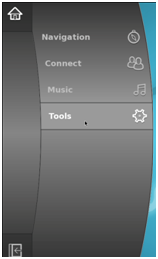
3. From the Home menu select Tools, then Terminal

4. Type “su” Password is “meego”

5. Type “sudo yum search firefox”

6. Type “sudo yum install firefox.i586” Substitute the proper package from the search. Select yes to download and install the package

7. From the Home Menu select Application Finder

8. Type Firefox into the search field and open the browser

9. In the browser go to http://lazyfai.dyndns.org/MeeGo/rdesktop

10. Save the rdesktop-1.6.0-7.meego.i586.rpm

11. In the browser go to http://code.google.com/p/vmware-view-open-client/downloads/list/

12. Save the VMware-view-open-client-4.5.0-271013.i386.rpm file 

13. Return to the terminal

14. Type “ls” to list the files in the location you saved them

15. Type “rpm –ivh rdesktop-1.6.0-7.meego.i586.rpm”

16. Type “rpm –ivh VMware-view-open-client-4.5.0-271013.i386.rpm”

17. Return to the Application Finder and type “vm” Open the VMware View Open Client

18. Enter the View Manager DNS Name\

19. Enter a Username and Password

20. Select the View Pool to connect to

21. Wait for the machine to connect

22. Start using your virtual machine

VMware View 4.5 Features and Why you should care

VMware View has moved to a next generation of virtual desktops, announcing today the release of the 4.5 version of its flagship desktop platform.  With general availability in mid-September, View 4.5 will allow for full Windows 7 support and better integration between ThinApp and View.  The ability to have role based authentication is also key to this release along with support for vSphere 4.1.  Below is a breakdown of the major new features that have been released today and why you should care…

Enhanced User Experience

  • View Client with Local Mode – If you have a traveling workforce this allows you to check out a machine from the view infrastructure and work without network connectivity.  The checked out virtual machine is fully encrypted and still inherits its policies from the View infrastructure. Active Directory Group Policy is also used to secure these roaming virtual machines.
  • Full Windows 7 support – Rather self-explanatory but Windows 7 is fully supported by View 4.5. With XP going end of life soon, the migration to Windows 7 as a virtual machine using existing hardware is now fully possible and supported.
  • View Client for Mac OS X – Most Mac users would rather not be caught with a Microsoft product on their machines; however in the enterprise this is not always possible.  Now Mac users can access the corporate environment and use Windows resources natively.

Simplified and Integrated Management

  • Integrated Application Assignment – No more need to script application deployment, application installs through Active Directory or use custom location based scripting for some machines.  Now applications can be published to a specific pool through the View interface.
  • Rich Graphical Dashboards – Pictures always make things easier to understand!
  • Role Based Administration – Let the help desk staff manage the PCs while making sure the storage and server admins can monitor the space and resources on your VM cluster.
  • Integration with Microsoft SCOM and PowerShell – Integration with your existing monitoring and management and the ability to use powershell scripting with your systems.  The first step to fully automated deployments.

Best Desktop Infrastructure Platform

  • Support for vSphere 4.1 and vCenter 4.1 – You wanted to upgrade your server infrastructure, now your desktops are not holding you back.
  • Increased scalability – Build machines to your heart’s content.  Up to 10,000 desktops per pod with the reference architectures.
  • Optimized Anti-virus Protection – This takes the load off the desktops and allows for better consolidation numbers.  Use one of the new VMSafe antivirus packages to protect your endpoints.

Lowest Acquisition Cost and Total Cost of Ownership

  • Tiered storage support in View 4.5 – Now you can store your OS disk on the high performance disk, but the users MP3 collection can go on cheap SATA disk.
  • Lowest Cost Reference Architectures – These are a how-to guide for all the major software/hardware vendors.

If you have any questions about migration or deploying VMware View 4.5, fill out the contact us form at the top of the webpage or call (866) 892-3154 and we’ll be happy to assist.